


Empowering Audit Analytics: Analyzing Restaurant Inventory Levels with R
In the realm of internal auditing, leveraging data analytics tools such as R can provide critical insights into operational efficiencies and financial management. Today, we’ll explore how R can be utilized to analyze restaurant inventory levels, employing the robust functionalities of dplyr and ggplot2 to compute key metrics and visualize trends effectively.
Step 1: Creating a Data Frame
Let’s begin by constructing a simulated dataset that reflects monthly inventory levels in a restaurant:
# Load necessary packages
library(dplyr)
##
## Attaching package: ‘dplyr’
## The following objects are masked from ‘package:stats’:
##
## filter, lag
## The following objects are masked from ‘package:base’:
##
## intersect, setdiff, setequal, union
library(ggplot2)
## Warning: package ‘ggplot2’ was built under R version 4.2.3
# Create a data frame with simulated restaurant inventory levels
restaurant_inventory <- data.frame(
Month = seq(1:12),
Inventory_Level = c(15000, 16000, 14500, 17000, 15500, 16500, 14000, 17500, 18000, 13500, 17000, 16000)
)
# View the data frame
print(restaurant_inventory)
## Month Inventory_Level
## 1 1 15000
## 2 2 16000
## 3 3 14500
## 4 4 17000
## 5 5 15500
## 6 6 16500
## 7 7 14000
## 8 8 17500
## 9 9 18000
## 10 10 13500
## 11 11 17000
## 12 12 16000
This restaurant_inventory data frame now contains monthly inventory levels, which will be used to compute the inventory turnover ratio and visualize trends.
Step 2: Calculating Inventory Ratio with dplyr
Next, let’s compute the inventory ratio, which provides insights into how efficiently inventory is managed and replenished:
# Calculate inventory ratio
inventory_ratio <- restaurant_inventory %>%
mutate(Inventory_Ratio = Inventory_Level / lag(Inventory_Level, default = first(Inventory_Level)))
# Print inventory turnover
print(inventory_ratio)
## Month Inventory_Level Inventory_Ratio
## 1 1 15000 1.0000000
## 2 2 16000 1.0666667
## 3 3 14500 0.9062500
## 4 4 17000 1.1724138
## 5 5 15500 0.9117647
## 6 6 16500 1.0645161
## 7 7 14000 0.8484848
## 8 8 17500 1.2500000
## 9 9 18000 1.0285714
## 10 10 13500 0.7500000
## 11 11 17000 1.2592593
## 12 12 16000 0.9411765
# Calculate average inventory level
avg_inventory_level <- mean(restaurant_inventory$Inventory_Level)
# Print average inventory level
print(avg_inventory_level)
## [1] 15875
Here, the inventory ratio is computed as the ratio of the current month’s inventory level to the previous month’s inventory level, highlighting turnover dynamics.
The ratio below essentially compares the current inventory level to the inventory level from a previous period (often the previous time period or a historical reference point). This ratio can provide several insights into inventory management and trends:
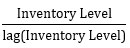
- Trend Analysis:
- Growth or Decline: By comparing the current inventory level to the previous period’s inventory level, you can assess whether inventory levels are increasing or decreasing. A ratio greater than 1 indicates an increase in inventory, while a ratio less than 1 indicates a decrease.
- Inventory Management Effectiveness:
- Stock Management: A significant increase in inventory levels might suggest overstocking, which could tie up capital and increase storage costs. Conversely, a decrease might indicate effective inventory management or potentially an issue with stockouts.
- Demand and Supply Alignment:
- Demand Changes: If inventory levels are rising faster than sales are increasing, it could indicate that supply is outpacing demand. Conversely, if inventory levels are decreasing while sales are steady or increasing, it may reflect good alignment between supply and demand or potential issues with replenishment.
- Operational Adjustments:
- Reordering: Businesses can use this ratio to determine if adjustments are needed in their reordering processes. For example, if inventory is consistently higher than the previous period, it might be necessary to review purchasing and inventory policies.
- Seasonal Adjustments:
- Seasonal Patterns: By analyzing this ratio over multiple periods, you can identify seasonal patterns or cyclical changes in inventory levels. This helps in planning for peak seasons or downturns.
Example Interpretation
- Ratio = 1: The inventory level has remained the same as the previous period.
- Ratio > 1: Inventory level has increased compared to the previous period. For instance, if the current inventory level is 120 units and the previous level was 100 units, the ratio is 1.2, indicating a 20% increase.
- Ratio < 1: Inventory level has decreased compared to the previous period. For instance, if the current level is 80 units and the previous level was 100 units, the ratio is 0.8, indicating a 20% decrease.
Practical Considerations
- Data Consistency: Ensure that the periods being compared are consistent (e.g., comparing monthly inventory levels to monthly levels).
- Lag Definition: The choice of lag (e.g., one period before) is critical. The lag could be adjusted based on the inventory review cycle or specific business needs.
- Context: Interpret the ratio in the context of business operations and external factors (e.g., changes in demand, supply chain disruptions).
In summary, this ratio helps track changes in inventory levels over time, providing insights into inventory management effectiveness, trends, and alignment with business needs.
Step 3: Visualizing Inventory Levels and Turnover with ggplot2
Visual representation is crucial for understanding and communicating audit findings effectively. Let’s create a column chart using ggplot2 to depict monthly inventory levels, with data points displayed on each column and the average inventory level shown as a horizontal line:
# Plotting restaurant inventory levels
inventory_plot <- ggplot(inventory_ratio, aes(x = Month, y = Inventory_Level, fill = Month)) +
geom_col(position = “dodge”, color = “black”, fill = “#69b3a2”) +
geom_text(aes(label = format(Inventory_Level, big.mark = “,”)), vjust = -0.5, size = 3) + # Format numbers with comma separators
geom_hline(yintercept = avg_inventory_level, color = “red”, linetype = “dashed”) +
labs(title = “Restaurant Inventory Levels”,
x = “Month”,
y = “Inventory Level”,
caption = sprintf(“Average Inventory Level (red dashed line above): %s”, format(avg_inventory_level, big.mark = “,”))) + # Format average inventory level with comma separator
scale_x_continuous(breaks = 1:12) + # Set months as discrete values
scale_y_continuous(labels = scales::comma) + # Ensure y-axis labels are formatted with comma separators
theme_minimal() +
theme(text = element_text(face = “bold”),
plot.title = element_text(hjust = 0.5, color = “dark blue”),
plot.caption = element_text(color = “dark green”))
# Display the plot
print(inventory_plot)

In this column chart, each month’s inventory level is represented by a column, with data labels formatted with comma separators for clarity. The dashed red line denotes the average inventory level, providing a benchmark for assessing inventory management efficiency.
Conclusion
In this blog post, we’ve explored how R can enhance audit analytics for restaurant inventory management. By leveraging dplyr to compute the inventory turnover ratio and ggplot2 to visualize inventory trends, auditors can derive actionable insights into inventory management practices.
Analyzing inventory turnover enables auditors to optimize stocking levels, reduce costs, and improve operational efficiency in restaurant operations. As internal auditors continue to adopt data-driven methodologies, mastering tools like R becomes essential for delivering strategic insights and fostering informed decision-making.
Stay tuned for more practical applications and insights into audit analytics using R in future discussions!
Responses